May 24, 2012
Creating an interactive monthly calendar in Tableau is easier than you might think
calculated fields
,
calendar
,
color
,
data blending
,
dates
,
Dustin Wyers
,
heat map
,
highlight table
,
interactive
,
InterWorks
,
Joe Mako
,
profit ratio
,
Steve Wexler
,
tableau
,
tips
,
tricks
26 comments
If you’re not following the InterWorks blog, you should be. They routinely crank out fantastic tips and tricks for Tableau. Dustin Wyers, a BI Analyst for InterWorks, recently wrote about “Creating Calendar Views in Tableau”.
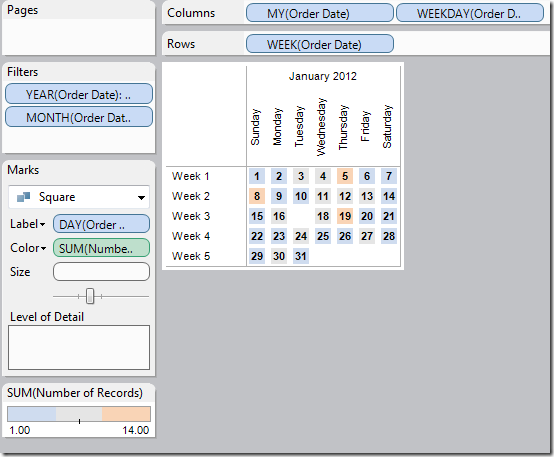
Dustin’s post does an excellent job of taking you through creating a calendar viz step-by-step. But I felt it fell a bit short in the end since you didn’t actually see a calendar. Dustin’s end product looks like this:

Ok, let’s get to it.
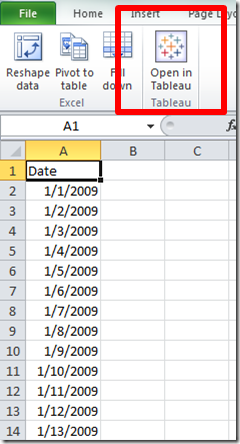
Step 1 – Create a list of dates in Excel and open the data in Tableau.
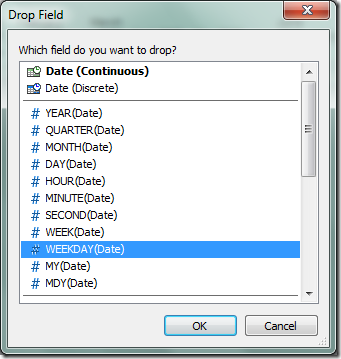

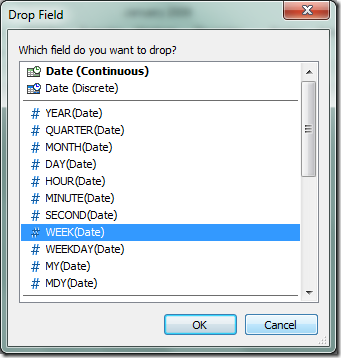
Step 4 - Right-click drag the Date field onto the Row shelf and choose the WEEK(Date) discrete format
Your view should look like this:
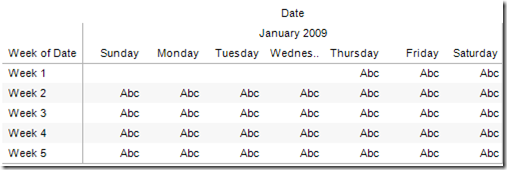
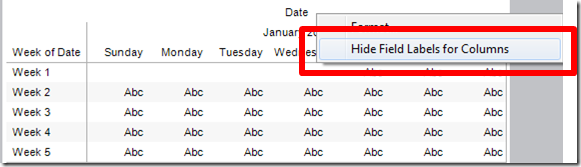
Step 5 – Clean up the view a bit by right-clicking on the Date label and choosing Hide Field Labels for Columns
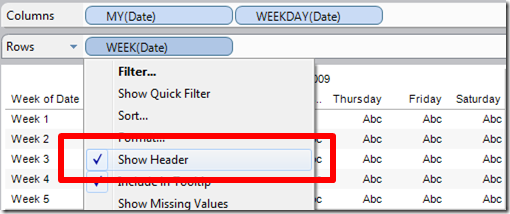
Step 6 – Right-click on the WEEK(Date) pill on the Rows shelf and uncheck Show Header
Your view should look like this:
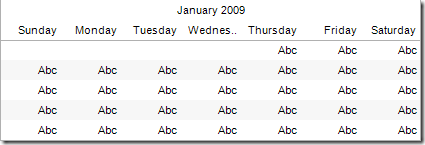
We’re getting close!
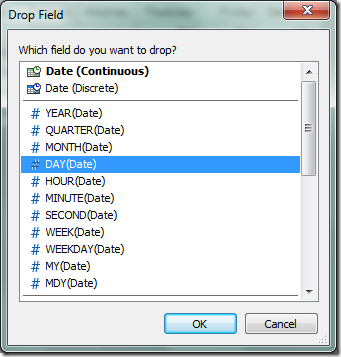
Step 7 – Right-click drag the Date field onto the Text shelf and choose DAY(Date)
Step 8 – Align the Text to the top right, center the header for the WEEKDAY(Date (copy) field, re-size the view a bit and we now have a beautiful calendar.
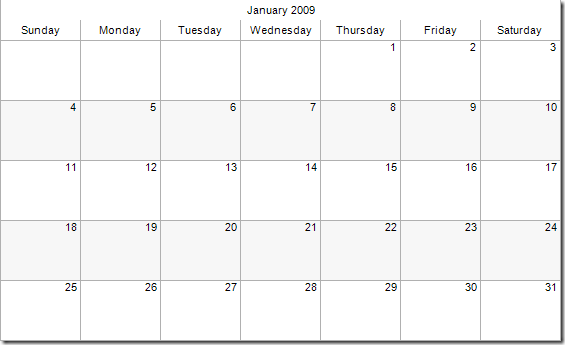
Ok, sweet, we have something that looks exactly like a calendar, but so what? This doesn’t tell us anything.
Consider that you want to see the profit ratio for your sales (or any other metric) displayed on each day as a color. This is where data blending comes in handy.
Step 9 – Connect to the Superstore Sales data source (or any other data you want to use, as long as it has a date field)
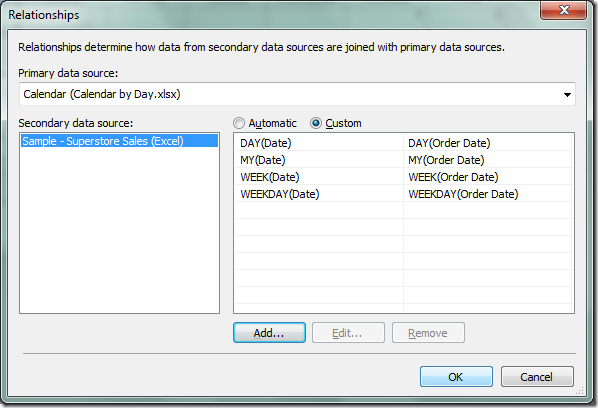
Step 10 – Create the data blending relationships. Go to the Data menu and choose Edit Relationships. You will need to create these Custom relationships:
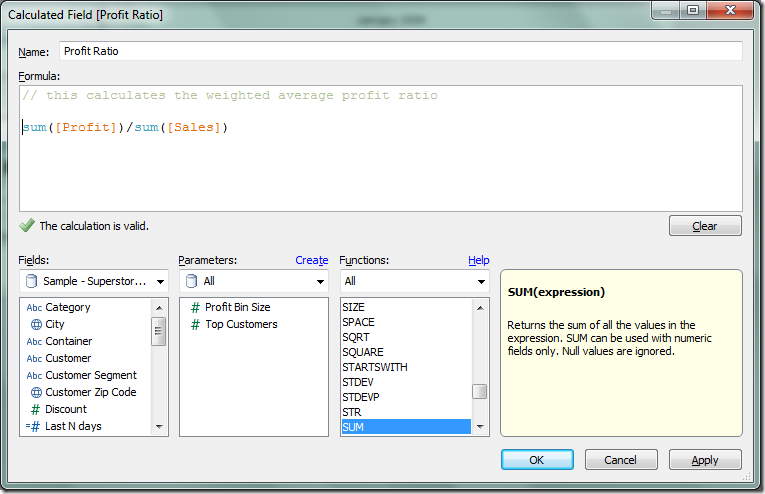
Step 11 – Create a calculation for Profit Ratio by right-clicking on any field and choosing Create Calculated Field
Step 12 – Drag the Profit Ratio measure onto the Color shelf
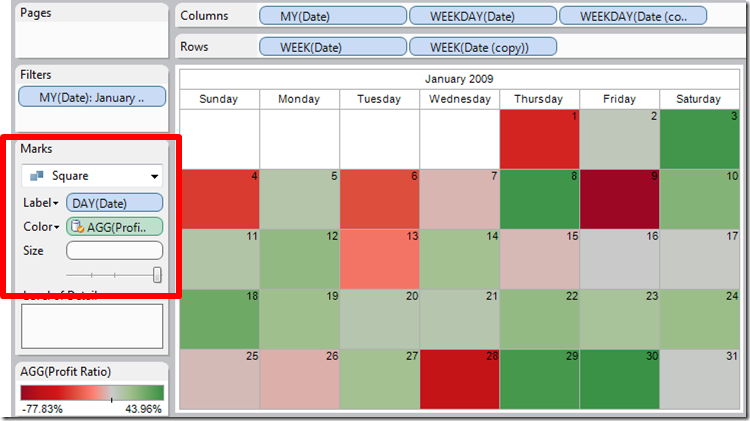
That’s it! You must admit this is pretty cool.
Note that Tableau defaults positive and negative colors to the Red-Green palette; you might want to change it for those color blind folks out there (and to keep Steve Wexler off your back).
If you want to take it a couple steps farther, you could show the quick filter for the MY(Date) field, create a parameter to allow for any of several metrics to be chosen, and on an on to make it a truly interactive analysis.
In the version embedded below, I changed the color palette to Red-White-Green so that those days without any sales would be white instead of gray.
Try this with your own data. I bet your users will find this incredibly useful, especially as a performance monitoring tool.

Dustin’s post does an excellent job of taking you through creating a calendar viz step-by-step. But I felt it fell a bit short in the end since you didn’t actually see a calendar. Dustin’s end product looks like this:

I wanted something that looked more like a true calendar. I did so utilizing some of the techniques I outlined recently for creating a heat map, but also adding in some of the suggestions by Joe Mako. The end result, if you follow the tutorial below, will look like this:

Ok, let’s get to it.
Step 1 – Create a list of dates in Excel and open the data in Tableau.

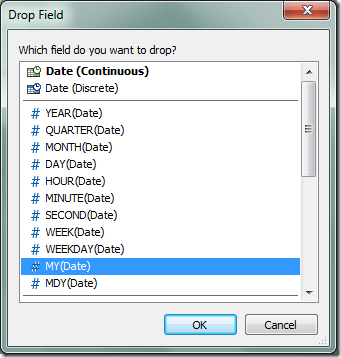
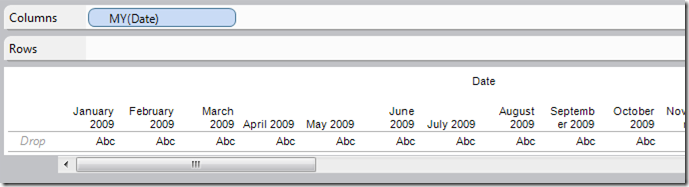
Step 2 – Right-click drag the Date field onto the Column shelf and choose the MY(Date) discrete format

Your view should look like this:

Step 3 - Right-click drag the Date field onto the Column shelf and choose the WEEKDAY(Date) discrete format

Your view should look like this:

Step 4 - Right-click drag the Date field onto the Row shelf and choose the WEEK(Date) discrete format

Your view should look like this:

Step 5 – Clean up the view a bit by right-clicking on the Date label and choosing Hide Field Labels for Columns

Step 6 – Right-click on the WEEK(Date) pill on the Rows shelf and uncheck Show Header

Your view should look like this:

We’re getting close!
Step 7 – Right-click drag the Date field onto the Text shelf and choose DAY(Date)

Step 8 – Align the Text to the top right, center the header for the WEEKDAY(Date (copy) field, re-size the view a bit and we now have a beautiful calendar.

Ok, sweet, we have something that looks exactly like a calendar, but so what? This doesn’t tell us anything.
Consider that you want to see the profit ratio for your sales (or any other metric) displayed on each day as a color. This is where data blending comes in handy.
Step 9 – Connect to the Superstore Sales data source (or any other data you want to use, as long as it has a date field)
You might ask at this point why I used a separate data source for the calendar dates when a Date field exists in the Superstore Sales data. The reason is quite simple. The Superstore Sales data does not have sales for every day. Therefore I will not see the Day labels on each of the boxes. For example, if there are no sales on January 13, 2009, then the 13 label on that day will be blank.
Step 10 – Create the data blending relationships. Go to the Data menu and choose Edit Relationships. You will need to create these Custom relationships:

Step 11 – Create a calculation for Profit Ratio by right-clicking on any field and choosing Create Calculated Field

Step 12 – Drag the Profit Ratio measure onto the Color shelf
Step 13 – Change the Mark Type to Square
Step 14 – Set the size to its maximum

That’s it! You must admit this is pretty cool.
Note that Tableau defaults positive and negative colors to the Red-Green palette; you might want to change it for those color blind folks out there (and to keep Steve Wexler off your back).
If you want to take it a couple steps farther, you could show the quick filter for the MY(Date) field, create a parameter to allow for any of several metrics to be chosen, and on an on to make it a truly interactive analysis.
In the version embedded below, I changed the color palette to Red-White-Green so that those days without any sales would be white instead of gray.
Try this with your own data. I bet your users will find this incredibly useful, especially as a performance monitoring tool.
Subscribe to:
Post Comments
(
Atom
)






What I especially like about this is the fact you could use it as a filter in a dashboard - have it up in the corner for people to sweep across ("Use as Filter" turned on).
ReplyDeleteIt would be great if you could do a join instead of the secondary source, but avoid the duplication of rows - I wonder if you could do that with custom SQL and some sort of union and select distinct?
Nicely done! I'll share that with my team, I think they'll appreciate it.
ReplyDeleteGreat idea for the date picker Alex!
ReplyDeleteAs for the duplication of rows, you have to do that in order to get the squares to fill completely with the color. Joe Mako showed me how to do this in lieu of creating a heat map.
Great tutorial. Very easy to follow and I love how it turned out! Thanks for sharing this.
ReplyDeleteI'm conducting four days of Tableau training for Tableau next week in NYC and I may just show this. But as you guessed, with a blue / orange palette. I like it very much.
ReplyDeleteSteve,
ReplyDeleteSometimes I leave it as red/green just because I know it annoys you. :-)
I showed the ATUG folks how to build this last week and it took under 30 minutes, and they're mostly beginners. It's super easy to train people on it and it got their minds thinking of the thousands of ways it could be useful.
Andy
This comment has been removed by the author.
ReplyDeleteI really like this layout. I can used it for a variety of the dashboards I'm creating, but I seem to have an issue with the number of weeks.
ReplyDeleteI can't seem to limit the number of weeks in the rows to 5. It also extends the columns out to display every single month in my data table.
I've gone through the steps several times and can't see where I missed.
Any thoughts?
Thanks,
Paul
Paul, you wouldn't want the number of rows for the weeks limited to 5 because sometimes you will need 6.
ReplyDeleteAs for the other issues, I can only know the problem if I can take a look at the workbook.
If it's something you can share, send it to kriebela at gmail.com.
I would also recommend you download the workbook in the blog post and looks at the setup of the worksheets. You might be able to track it down that way.
Excellent tutorial. Very very easy to follow, thank you for sharing it with us.
ReplyDeleteOne question , the company I'm working for, divides year in 13 periods for finance reason, a 13-period calendar splits the year into 13 four-week periods rather than 12 months of varying lengths, so I would like to ask if it is possible to use same technique to create a Period Calendar as you did with a Monthly Calendar.
Read more: How Do I Make a 13-Period Calendar? | eHow.com http://www.ehow.com/how_6884863_do-make-13_period-calendar_.html#ixzz1xFLfpsxb
Thank you again sharing the Monthly Calendar with us.
Jura, you should be able to apply this technique regardless of the dimensions you use. You could easily replace your period dimension for the date dimensions in my example.
ReplyDeleteI would suggest you download the workbook and see how it was built. You should be able to get exactly what you want if you duplicate the placement, format, etc, of the fields in the workbook.
How would you extend this technique to show the calendar for not just one month but for the whole year(e.g 3x4 matrix where each cell is a month)?
ReplyDeleteHow about adding a quarter of year field and a month of quarter field.
DeleteHaven't tried but it should give you the same dimensionality as with weeknumber and day of week.
And then add the month name like the date in the example.
//Peter
I'm currently using a calendar with a filter but run into a problem when I try to create a filter since the day labels are only shown for the days that apply to the filtered dimension (for example, if I want to look at a subset of sales but no sales happen on Jan. 1, there will be no label of "1" in the first box). I know a quick workaround but not one that is easy to implement if I have a number of filters. Do you have any suggestions?
ReplyDeleteI would need to see a specific example of this. Do you have a workbook you can share?
DeleteGreat Viz. But I ran into a problem when blending data from secondary source. I trying to display the ID's of projects to be started on specific dates. If we have just one project on a specific date it works fine and displays the ID, but if multiple projects it just shows a *
ReplyDeletecan someone suggest a workaround.
Can you share a workbook?
DeleteOK - I think I've got a data blending issue (step 14). My other data set has information about order bookings (Room, Start Date, Order #, Order Status, Order Description). I need to display this information in the monthly calendar so that the results are filtered by room.
ReplyDeleteI created the separate date workbook & the custom relationships as you suggested.
But I want to filter the display to bookings of a specific room for that month.
If I don't filter to the specific Room, I get a lot of asterisks (and not all of the bookings).
However, once I filter to the room description, I lose the other calendar dates.
Any thoughts on how to correct?
(Thanks!)
Can you post a sample workbook?
DeleteHi Andy - I can re-create it in your workbook too. Drag in Customer & Order # into the label box, then add the quick filter for Category, and select "Furniture Only".
DeleteI'd be happy to share the sample workbook, but as a newbie to your site, I'm not sure where to do that. Thanks,
Kara
Hi Andy - looks like my earlier reply didn't post correctly.
DeleteI can actually recreate this behavior using your workbook, by simply dragging in a few fields (like customer, order ID & category) to the Text Mark and then adding a quick filter to look at just those items that are Category of Furniture or Null.
- the addition of the fields to Text Marks gives me a lot of *'s on the calendar display (I'm guessing that's because there's not enough real estate for the data).
- when I filter to a specific category (like Furniture) then I get more detail displayed, but - I lose the Date displayed as a Day # on those days where I have no Furniture orders.
- I'd hoped that adding the Category = Null would bring back the days that don't have orders, and it brings back most, but not all.
Any help would be greatly appreciated. THANKS!
kara
Hi there - this is so useful, but I'm also having some trouble customizing it for my needs.
ReplyDeleteInstead of using the heatmap in your example, I want the calendar to display a specific room's bookings for the selected month.
My data set includes: Room Name, Start Date, Order #, Order Description & Status.
I've added a quick filter to select which MY(Date) and which Room to display.
Issue #1: If I don't filter to a specific room then I get a lot of asterisks (I'm guessing because there's too much data to display).
Issue #2: I do filter to a specific room, then I lose all the dates without bookings in my data set. (Ex: # of a day disappears, or - if there are no bookings for Sundays, that column disappears, likewise, I lose any week/s without bookings on them).
Issue 2 is the most pressing item on my list. I think if I can create a smaller list of rooms for the user to select from and also always include "Null" values then I'll be in the clear.
PS - You can re-create these if you want in your workbook sample. Simply drag the Customer, & Order # into the Label box, and then add a quick filter for Category, selecting " Furniture" only.
Kara, to share the workbook, you can upload it to Tableau Public and then post the link.
ReplyDeleteHi,
ReplyDeleteThis is really nice. However I'm having a multiple data source issue:)
In this example the dates in the excel sheet are the primary data source. Is there any way to make it the secondary source while still showing all the dates?
Good stuff Andy, got what I wanted from your walk through in about 5 minutes (5 minutes + the 2 days I spent believing I would figure it out myself).
ReplyDeleteHi. I'm wondering if you can imagine a way to give users the choice of filtering by day or by month? Thanks. Dan
ReplyDelete